
- Details
- Written by: medilog
- Category: Darwin2
- Hits: 99
To enable remote customers of a scanlab to use the patient diary phone app, follow these steps:
Liberty server requirements
- Ensure you have a fully functional Liberty installation that is accessible from the public internet.
- Use LibertyConfig to specify the Domain name under which the Liberty server can be reached externally (eg https://www.LibertyDiary.com/ )
- Use the Liberty web interface to configure at least one upload-user account.
Remote Client PC Setup
- Install medilog DARWIN2
- Open the medilog DARWIN2 AdminTool
- Navigate to Extended settings / Liberty integration
- Enter the Liberty server domain name
- Provide the username and password for a configured upload-user.
- Set "Enable patient diary app" to true
Once a recorder is configured on the remote PC, the system will generate a patient diary form at the end of the process. This form can be printed and includes a QR code.
When the patient scans this QR code using their mobile phone, the patient diary app will launch on their device, enabling entering diary entries.
These entries are instantly transmitted to the scanlab and will be visible to analysts once the recording is uploaded to the scanlab.
- Details
- Written by: medilog
- Category: Darwin2
- Hits: 442
Configuring LDAPS in Darwin
This document provides a guide to configuring LDAPS (LDAP over SSL) in Darwin and integrating it with an LDAP testing tool.
Overview of LDAPS Configuration
LDAPS functionality in Darwin relies on a third-party utility, LDAPQuery.exe, included with the Darwin installation. Two additional tools are particularly useful during setup:
-
LDAP_ActiveDirectory_Test.exe: A Schiller provided tool for generating configuration files (.dau files).
-
LDAPAdmin: An open-source LDAP administration tool.
Pre-requisites
Before proceeding, ensure you have the following:
-
User credentials for the LDAP server.
-
The latest versions of the necessary tools, which can be downloaded from here.
Step 1: Establishing a Connection Using LDAPAdmin
The LDAPAdmin tool is a versatile utility for testing and establishing a connection to an LDAP server. It provides detailed error messages for troubleshooting and can help validate connection parameters before configuring Darwin.
Instructions
-
Launch LDAPAdmin.
-
Click on the Connect icon and select New connection.
-
Fill in the connection parameters provided by your LDAP server administrator:
-
Hostname or IP Address of the LDAP server.
-
Port (default is 389 for LDAP and 636 for LDAPS).
-
Authentication Method (Simple or GSS-API).
-
A valid username and password (anonymous connections are not supported).
-
-
Ensure the connection is successful by clicking Fetch DNs. If successful, you have a valid connection.
Troubleshooting Tips
-
If simple authentication fails, try switching between GSS-API and Simple authentication methods.
-
Use the older "Domain\Username" format if the Principal User Name format (e.g., username@domain) does not work.
Once connected, search for a user in the directory to confirm the LDAP server is correctly responding to queries.
Step 2: Using LDAP_ActiveDirectory_Test
The LDAP_ActiveDirectory_Test.exe tool is used to test and create configuration settings for Darwin to query the LDAP server.
Instructions
-
Input the following details:
-
Username/Password: Use the credentials validated in LDAPAdmin.
-
Domain: The domain to which the user belongs.
-
Connection String: Use the same connection string as in LDAPAdmin (e.g.,
ldaps://<server>orldap://<server>). -
Authentication Method: Match the method used in LDAPAdmin.
-
-
Alternatively, use
ldaps://autoto let Darwin automatically determine the domain server based on the "Domain Controller Setting."-
Domain Controller Setting options:
-
No Conversion: Uses the provided domain.
-
NetGetAnyDCName/NetGetDCName: Determines the domain server dynamically.
-
-
-
Click TestLogon to validate the connection.
Configurable Parameters
The tool allows customization of various parameters:
-
UseSSL/UseTLS: Specify the protocol based on the server configuration.
-
Short Unames: If enabled, only the username (without the domain) is stored.
-
Query UPN: Queries usernames in UPN format (e.g.,
This email address is being protected from spambots. You need JavaScript enabled to view it. -
Query NT: Queries usernames in NT format (e.g.,
Domain\Username). -
Base Search Path: Restricts queries to a specific subtree in the LDAP directory.
-
UPN Suffix: Overrides the domain part of the UPN if different from the user’s registered domain.
Step 3: Configuring ldapconfig.json
Advanced configuration options can be set in the ldapconfig.json file. The file consists of two main sections: LDAP (connection settings) and Search Fields.
Connection Settings (LDAP)
-
DomainController: Specifies the LDAP server (overwritten by the LDAP Server field in the tool).
-
Port: Defines the port used by the LDAP server (default is 0 for automatic detection).
-
EnsureDomainInUser: Ensures the username includes the domain (e.g.,
@domain). -
User/Password: Fixed credentials for querying the LDAP server (if required).
-
Version: Specifies the LDAP protocol version (default is 3).
-
Authentication: Defines the method:
-
0for Simple -
2for GSS -
3for GSS_SASL (secure GSS)
-
-
TLS/SSL: Set only one to
truefor LDAPS connections. -
StrictCertCheck: Verifies the server certificate (set to
trueto enforce).
Search Fields
-
BaseCommonPath: Starting point for LDAP searches (optional).
-
Domain: Specifies the user’s domain (only one domain is supported).
-
SearchFilter: Defines the query filter (e.g.,
"(UserPrincipalName=%s)"). -
UPN Suffix: Overrides the default domain suffix if necessary.
-
ldapCmd: Points to the executable used for LDAP queries (default is
LDAPQuery.exe). -
ldapParamsUser/ldapParamsGroups: Parameters for querying users and groups (rarely modified).
-
ldapUseOneTimeCrypt: Encrypts passwords for generated files (default is
true).
Generating DAU Files
Once the parameters are successfully tested, use the tool to generate a DAU file. This file contains the finalized configuration and can be imported into Darwin for seamless LDAP integration.
By following these steps, you can ensure a reliable and secure LDAPS setup in Darwin. For further assistance, refer to the official documentation or contact support.
If qurying for users and groups succeed create the DAU file that can be used.
- Details
- Written by: medilog
- Category: Darwin2
- Hits: 162
Darwin Open Data provides 3rd party programs like Matlab access to the Darwin2 recording data.
To install, run "DarwinOpenData_Install.bat" (can be found in the the Darwin2 program folder). Administrator permissions are required.
Connect to DarwinOpenData
To connect to DarwinOpenData in Matlab, type the following lines of code:
(Lines starting with "%" are comments, you don't need to enter them)
|
|
Open a recording
ListRecordings prints a list of all recordings that are marked as uploaded, analyzed, released or reviewed.
Each entry of the list consists of a GUID (necessary to open a recording) the state of the recording and the
patient’s first and surname.
|
|
Now open a recording by calling OpenRecording with the GUID.
|
|
The variable rec is an interface to this specific Darwin recording.
|
|
Beat types:
2 Normal
3 Ventricular
4 Atrial Paced
5 Ventricular Paced
6 Dual Chamber Paced
7 Bundle branch Block
8 Junctional
9 Fusion
10 Artefact
11 Paced
12 Breaking Artefact
Closing ActiveX
release(server)
- Details
- Written by: medilog
- Category: Darwin2
- Hits: 94
To minimize the amount of work needed to translate new versions of Darwin we use a translation dictionary that contains all phrases, workflows and reports used in the software.
To translate such a dictionary you need to install the program "Translator" and open the dictionary file (e.g. by doubleclicking the twl-file).
This is what you see:
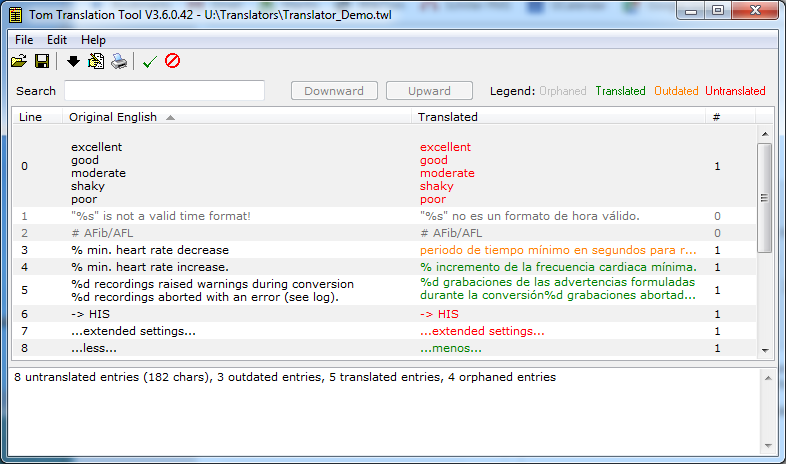
The first column holds the original English text, the second column holds the entries in "your" language the the 3rd column specifies how often this word/sentence is used in the software.
The entries are color coded to show their state. You'll see:
- green: entries that are already translated
- red: entries that are not yet translated at all
- orange: entries that have been translated in the past, but the original English string has been modified. A re-translation might be necessary.
- gray: entries that are not used anymore. These entries are just kept for future reference and no translation is necessary.
Translate items by overwriting the content of the 2nd column. To edit a cell simply start typing or press <Enter>. To finish editing press <CTRL> + <ENTER> (Pressing only <ENTER> will not work if you are editing a multi-line-entry). When you change an entry it will turn green marking the entry as translated.
If you see an entry that is red or orange and you think that the translation is already correct press CTRL+T (or select "Set translated" from the context menu) to mark it green.
Placeholders are special characters (%s, %d ...) that will be replaced with values during program execution (e.g. "You have deleted %d files."). The translator also has to maintain that in the translation the placeholders are ordered in the same sequence. If the sequence is not maintained, the program will issue a warning. Theoretically it is possible to change the order of placeholders, but this procedure is quite complicated and therefore not explained here.
For items where the context is not clear, you'll find a additional explanation in the lower area of the translation tool. If you still don't know how to translate a word, you have to mark the line as "untranslatable" by pressing <CTRL>+U. We will give you feedback on those items, so you know how to translate them in a 2nd run.
Updating translations
If you want to make changes to translations in Darwin, you have to do those changes on a new dictionary file. Just send me an email, you'll get the new language file within a very short period of time.
Some of you keep old (outdated) dictionary files, apply changes there and send these files to me. This is BAD! We will refuse to accept outdated language files, as using such language files may cause troubles (e.g. some translations that have been made earlier may be overwritten and lost).
If you want to make changes to translations please FIRST request a new updated dictionary file from me, change it and send it back.