
What is a screen layout?
Module windows are typically docked into the main application window of Darwin2. A (meaningful) composition of modules can be stored and is called a "screen layout". A "workflow" is a list of screen layouts wich a user typically goes through during his work on a recording. E.g. during a normal work, the user would first look at the "Patient demographics" layout which contains the demographics, some short information on the recording and the patient diary. After the user verified that this information is correct, he could proceed to the "Trend" screen layout where he sees a heart rate trend and some overview information about found arrhythmias.
Customizing layouts
Click on the workflow title underneath the database icon. In the popup menu select "Design mode". Change the layout as desired. When you are ready, click on "Save layout" in the same menu. You changed the layout for the current user. To make your workflows the standard workflows for all users, click "Manage workflows". A window pops up that allows you to configure workflows. Click on "Defaults" / "Save as system default". Now the workflow will be applied for all users that don't have personalized workflows yet.
For a short demo-video see http://www.screencast.com/t/3Ws1HW22
Btw: You can revoke a user's permission to edit layouts in the AdminTool. (Users / Customize group / "Customize screen layouts")
Layout and workflow requirements
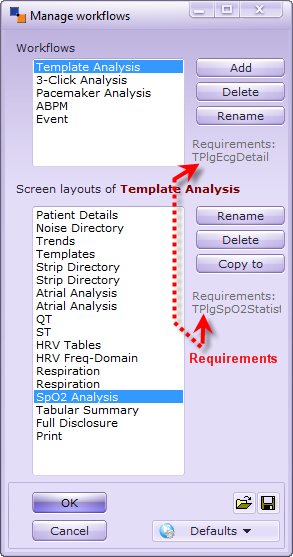
When you select a workflow in the "manage morkflows" window, a list with all contained layouts is displayed. You may see multiple entries with the same title here. When you click on such an entry, you will see all requirements of the selected entry. A requirement limits the visibility of an element. So if you opened a recording that does not contain respiration information, it does not make sense to show workflows and layouts that require respiration information. When you click on the entry "SpO2 Analysis" you see that the requirement "TPlgSpO2Statistics", which means that this layout is only visible when the SpO2-statistics-plugin is available.
You can change the requirements by right clicking on a entry and selecting "Configure visibility".