
If your medilog AR recorder refuses to work properly, verify that you have the most recent Recorder firmware version installed. In older versions you may encounter sections of missing ECG (that's due to write errors). All displayed ECG sections are valid.
Further measures:
USB connection
Verify if the recorder is recognized by windows: Connect it with USB. In the windows explorer the recorder has to show up like a USB-stick - as a drive letter. If it doesn't, verify that an SD card is in the recorder. If the card is there, try a hardware reset (see below). If this doesn't help, your recorder is dead. Time for service.
Can't configure a recording
You connect the recorder via USB to the PC and start RecConfig, but the recorder is not recognized? Are you sure that the recording on the recorder was downloaded. If the screen on the recorder shows a checkered flag, that means that the recorder holds a recording that first needs to be downloaded.
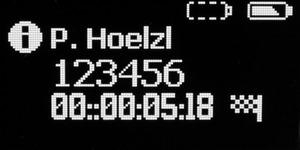
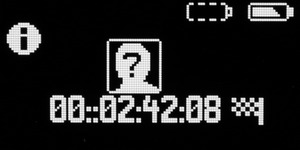
Here as an example a normal and an anonymous recording, both waiting for upload. The checkered flag is located next to the recording length. If you want to override the security mechanism and configure the recorder even though the recording has not yet been imported, hold down the CTRL key when clicking the AR recorder symbol in the RecConfig application.
Hardware reset
Connect the recorder with USB to the PC. Wait until the recorder display is visible. Press the lower button. The display gets dark, then the power symbol shows up. You just performed a hard reset of the recorder.
Error codes
- #2: One of the system sectors is corrupted. The device needs to be sent in for reprogramming.
- #3 : Problems in the bluetooth module. Please perform a hardware reset
- #11 : The bluetooth module could not be initialized. Simply re-start the recorder. If the problem occurs more often, the BT-module might need to be exchanged.
- #23 : No communication with SD card. SD card or SD card slot damaged.
- #45 : The recorder was configured using the SD card and the wrong recorder profile was selected. (e.g. Enterprise on an office recorder). After updating to Firmware 2.14 or later this will be shown with an icon.
- #500 : You are trying to install a recorder license on an AR recorder with firmware 2.14 or newer, but your Darwin installation has not got the updated profiles. Please install the patch "Darwin_Firmware_AR_V214.exe" on top of Darwin292, or - even better - update to Darwin2.10 and try again.
- AR[e] ?? AR[p]!! (or similar, two DIFFERENT editions shown): You are configuring a "Professional" recorder, but you selected "Enterprise" in the configurator. (via SD card)
- AR[p] ?? AR[p]!! (two times the SAME edition): The firmware update process was interrupted. Re-install the firmware to resolve that. Open the recorder configurator, click on "AR". A list of the recorders currently connected to the PC appears. Right-click on the asterisk of the recorder, select "Update recorder firmware". Update again - this time correctly :) - and the problem should be solved.
Downgrade firmware
NEVER downgrade a recorder to a version that it didn't have before. If you purchase a recorder that is shipped with firmware 3.0, DON'T downgrade to e.g. V2.16, as this will render the recorder unusable. If you did, you will need to send the recorder in for repair.