
From Darwin2.8 on it's possible to configure Darwin2 in a way, so that multiple departments share the same database and - more important - the licenses. But users from department A only see "their" recordings and no recordings from other departments and vice versa.
ATT: This function requires as many "Multitenancy" licenses as departments are used.
The configuration is simple. Here's an example:
- Open the License browser and verify that you own at least 2 "Department" licenses
- Open the AdminTool and switch to the "Users" tab
- Click on "Group -> Customize".
- Create departments:
- In the "Manage user groups" window, select the group "Default". Click the "Edit"-symbol (a pen) next to the "Member of department" dropdown list.
- A window "Manage departments" opens. Create two departments, e.g. "Cardio" and "Sleep". Click "Close".
- Here you can optionally set custom report logos and address headers for the different departments. You can also make individual reports invisible for this department.
- Create user groups associated with departments:
- Back in the "Manage user groups" window, select the group "Default", then click on the green "Add group" button. This creates a group that clones all properties from the "Default" group.
- Enter "Default_Cardio" as group name. In the "Member of department" dropdown list select "Cardio".
- If desired create a group "Technician_Cardio" also pointing to department "Cardio".
- Do the same for the next department. e.g. for a sleep lab we create groups "Default_Sleep" and "Technician_Sleep", both pointing to department "Sleep"
- Repeat these steps for each required department.
- Assign users to groups:
- Finally close the "Manage groups" window. In the "Users" tab, assign users to the corresponding user groups.
- Tip: When using LDAP authentication, the group-assignment of users can be done automatically. See "Group mappings" in LDAP authentication
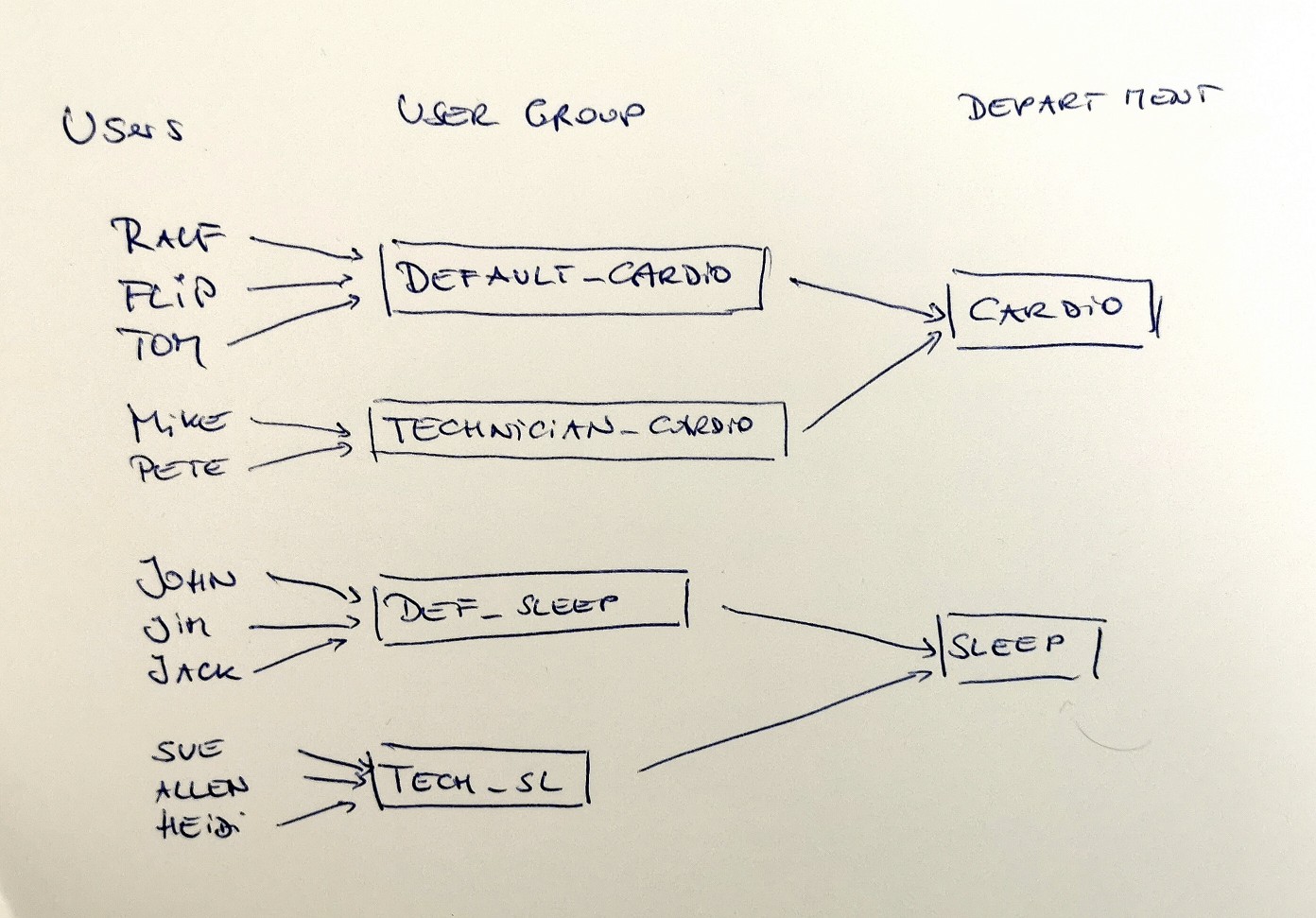
Done. When you now start Darwin and log in, in the title bar of the window you see the username and the department, e.g. "Recording Database Browser [Ralf @ Cardio]". The user "Ralf" will not see recordings, that are assigned to users that belong to a different department.
To have separate Sema3 worklists for each department, you can specify a DeviceID-to-User mapping in the AdminTool (see Extended settings / Sema3 integration / Device IDs). Eg if you set the DeviceIDs to "Dev101:UserA,Dev102:UserB", then all entries associated with DeviceID "Dev101" will be assigned to (dummy) UserA which should be associated with DepartmentA. (and UserB with DeptB). So all users from DepartmentA will see entries from Dev101, users from DeptartmentB will see entries with Dev102.
ATT: If a recording is not assigned to any user then the recording will be visible to all users. And: user that are not assigned to any department will see all recordings.
Tip: When you prepare a recording using RecConfig, assign the recording to a specific user by selecting the desired user from the "User" drop down list. If you start RecConfig from the Darwin database view, you can tell the system to automatically preselect the user that was logged on in Darwin. To do so, open the AdminTool, and in the extended settings set "Assign recording to current user" (section "Recorder Configurator") to true.
Alternatives
If the department-license is too expensive for you, you can try a different approach (very simplistic and has some limitations, but it's free...):
Create one user per department and in the database select "Hide other users". In the AdminTool / extended settings set "Recorder Configurator / Assign recording to current user" to true. This way a user will not see recordings assigned to a different user.